

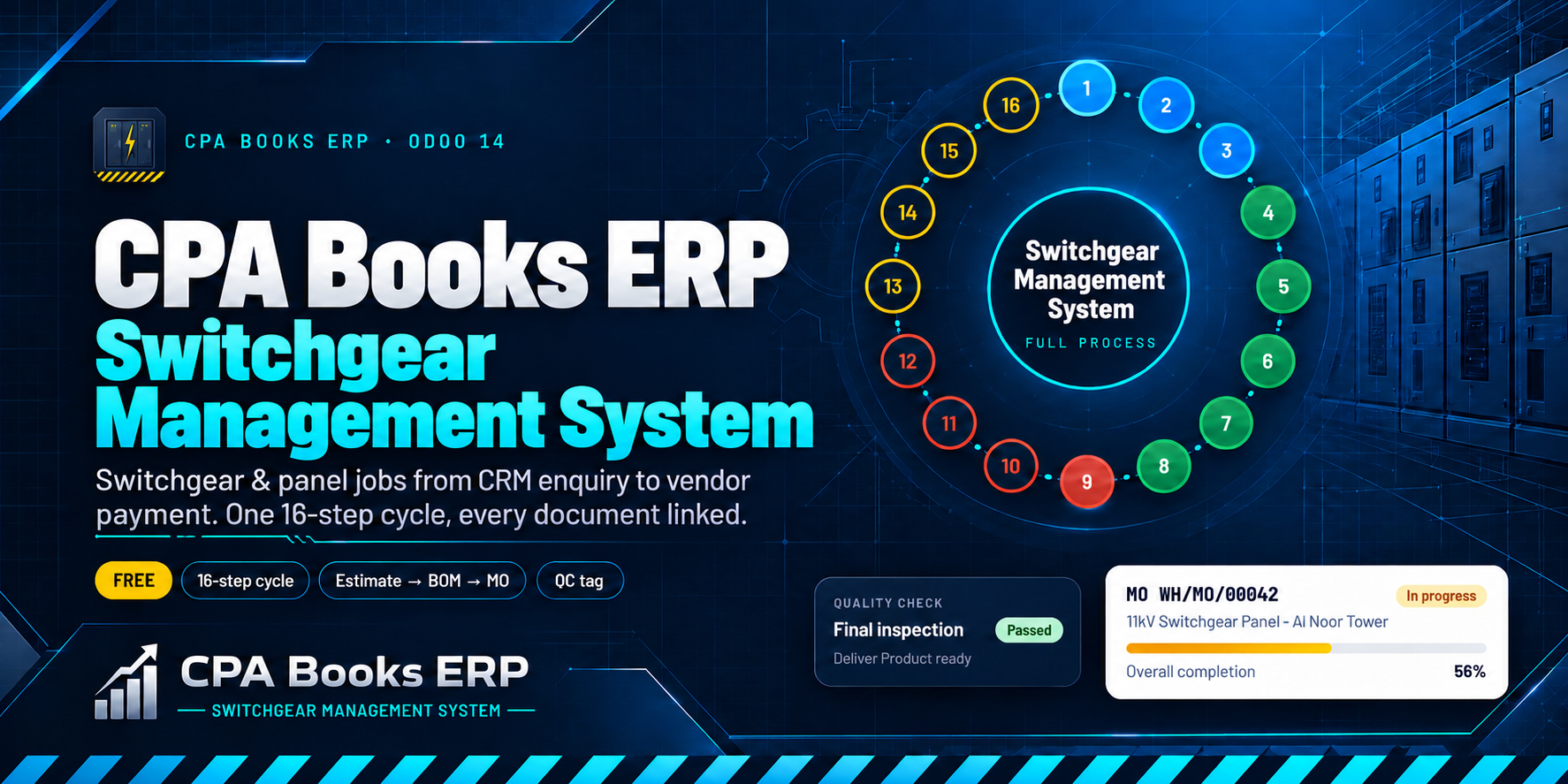
Switchgear Management System
You bought this module and need support? Click here
Switchgear Management System
Switchgear Management System & electrical panel jobs, from CRM enquiry to vendor payment
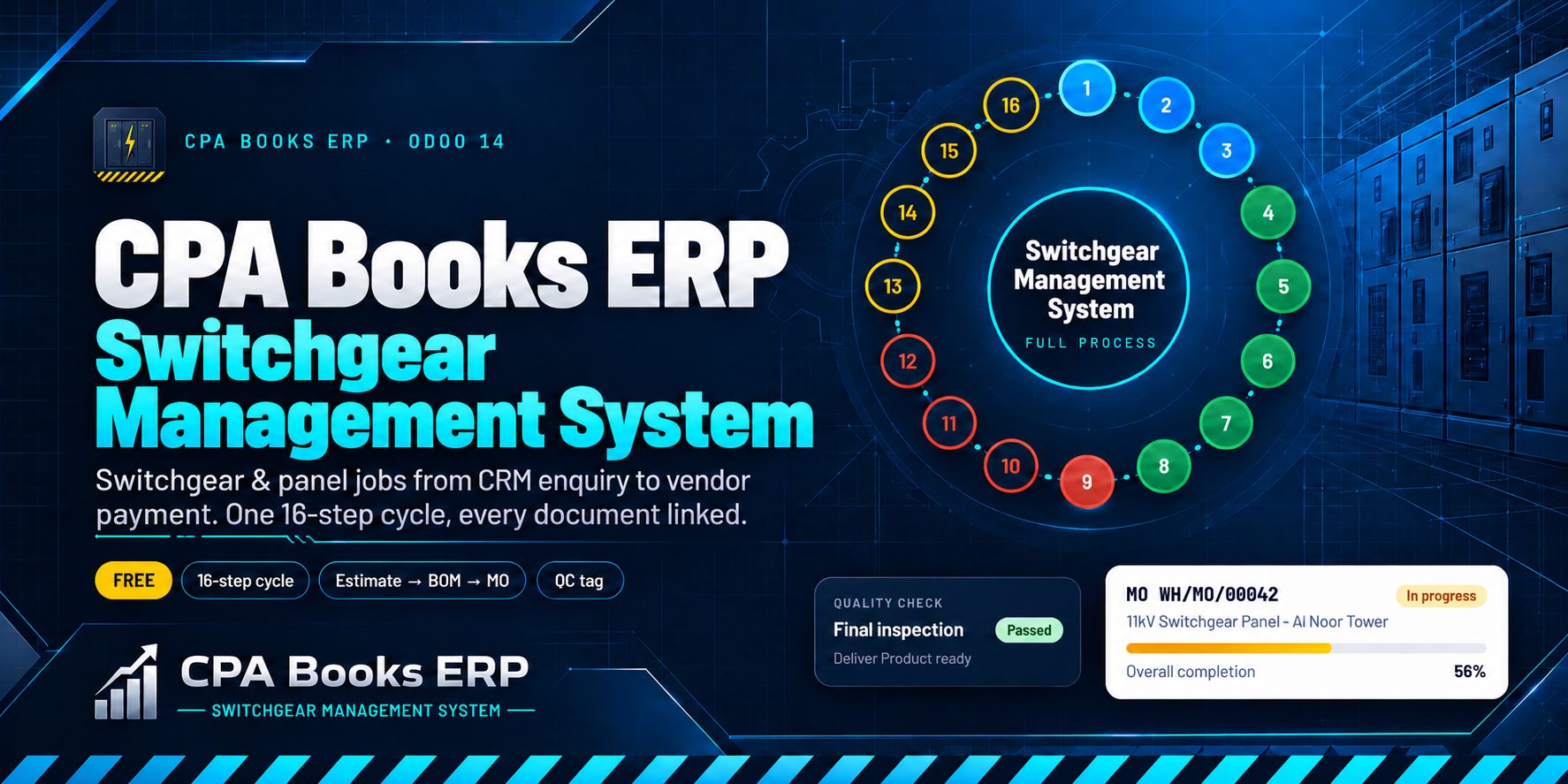
One 16-step processing cycle links enquiry, estimate, quotation, design documents, BOM, manufacturing order, purchase, quality check, GRN, delivery, invoice and payment. Every screen is one click away from a dedicated Switchgear Management System workspace.
See the 16 steps Ask for a demo
Sixteen steps, clockwise, one click each
The cycle screen puts the whole job on one wheel. Click any step and Odoo opens that list: pipeline, estimates, BOMs, MOs, receipts, deliveries, invoices or payments.
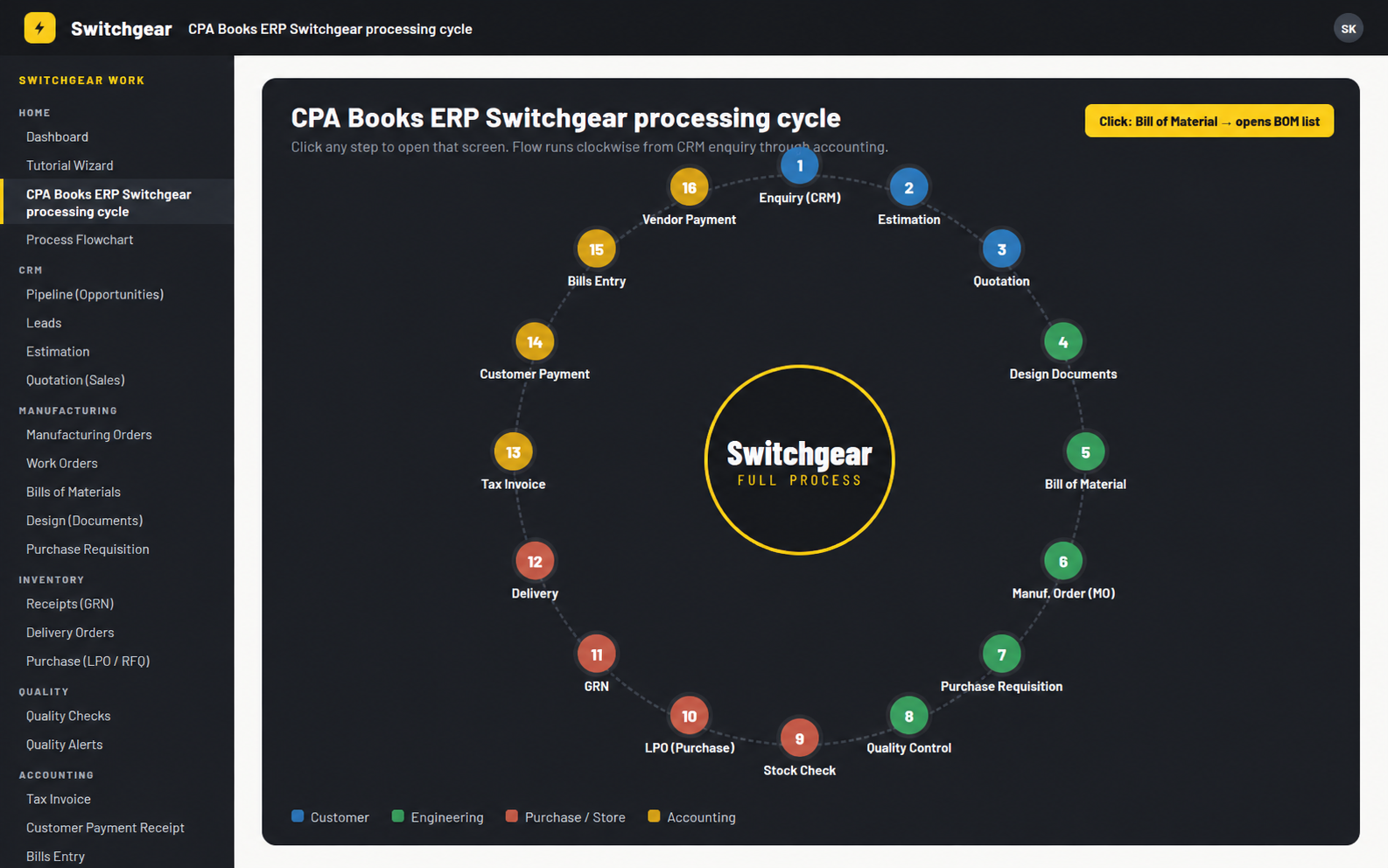
2 · Estimation
3 · Quotation
5 · Bill of Material
6 · Manuf. Order (MO)
7 · Purchase Requisition
8 · Quality Control
10 · LPO (Purchase)
11 · GRN
12 · Delivery
14 · Customer Payment
15 · Bills Entry
16 · Vendor Payment
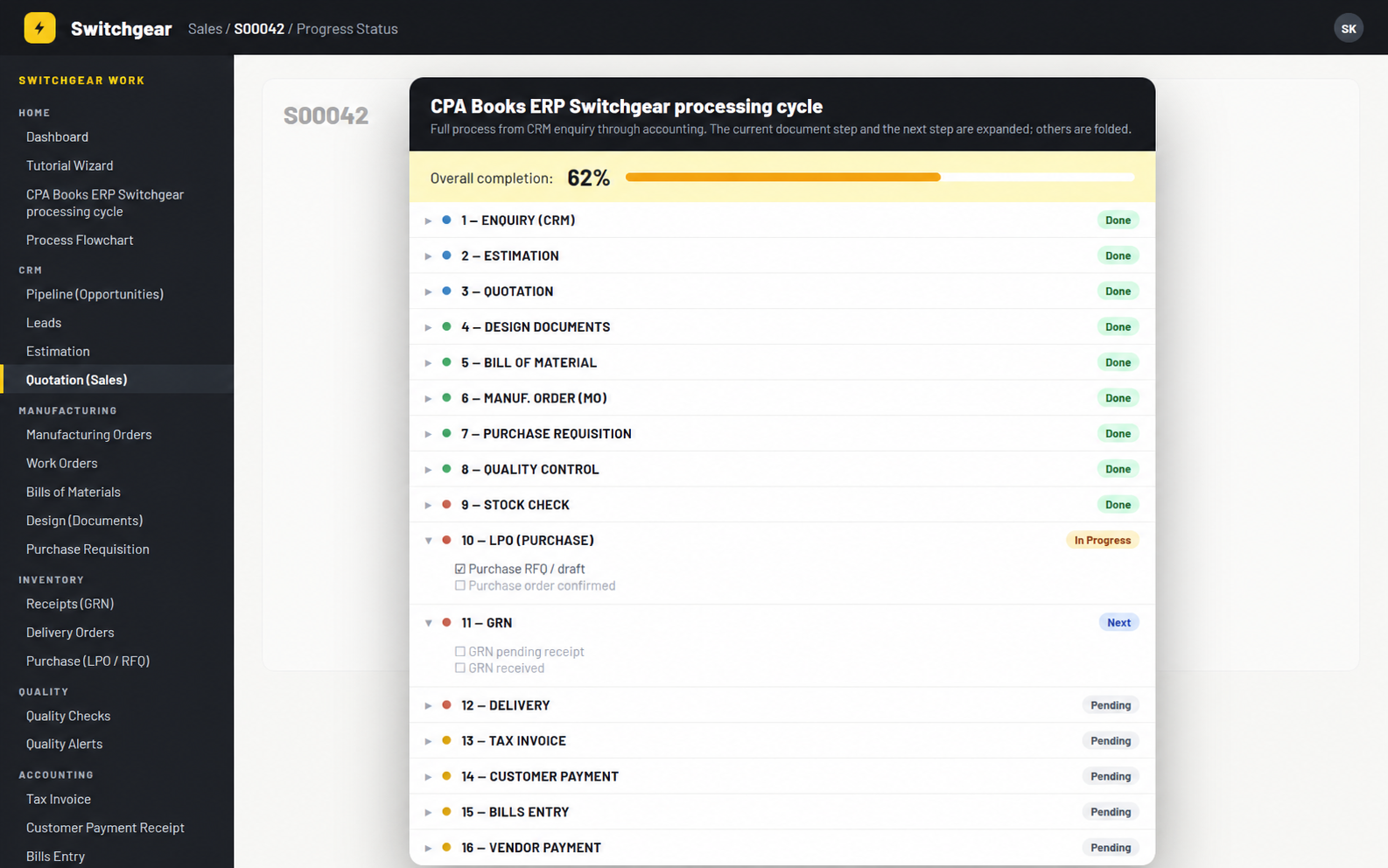
Where is this job? One button tells you.
Press Progress Status on an opportunity, estimate, sales order, MO, purchase order, transfer or quality check. A popup shows the overall completion and all 16 steps. The current step and the next one open with their checklist; the rest stay folded.
Checklist items include: estimate approved, quotation sent, sales order confirmed, documents sent and received, MO released, quality passed, GRN received, delivery completed, invoice posted and payment voucher.
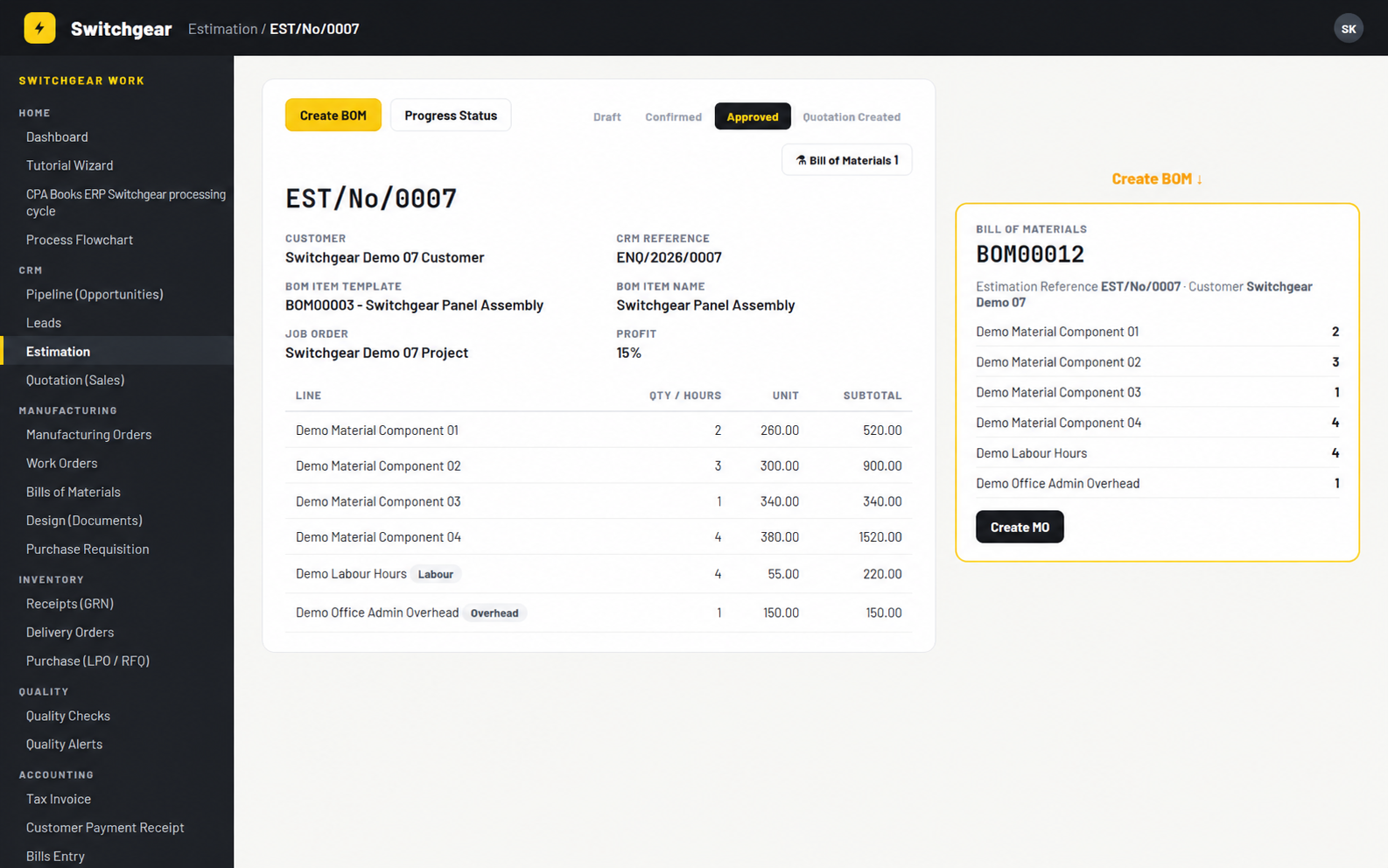
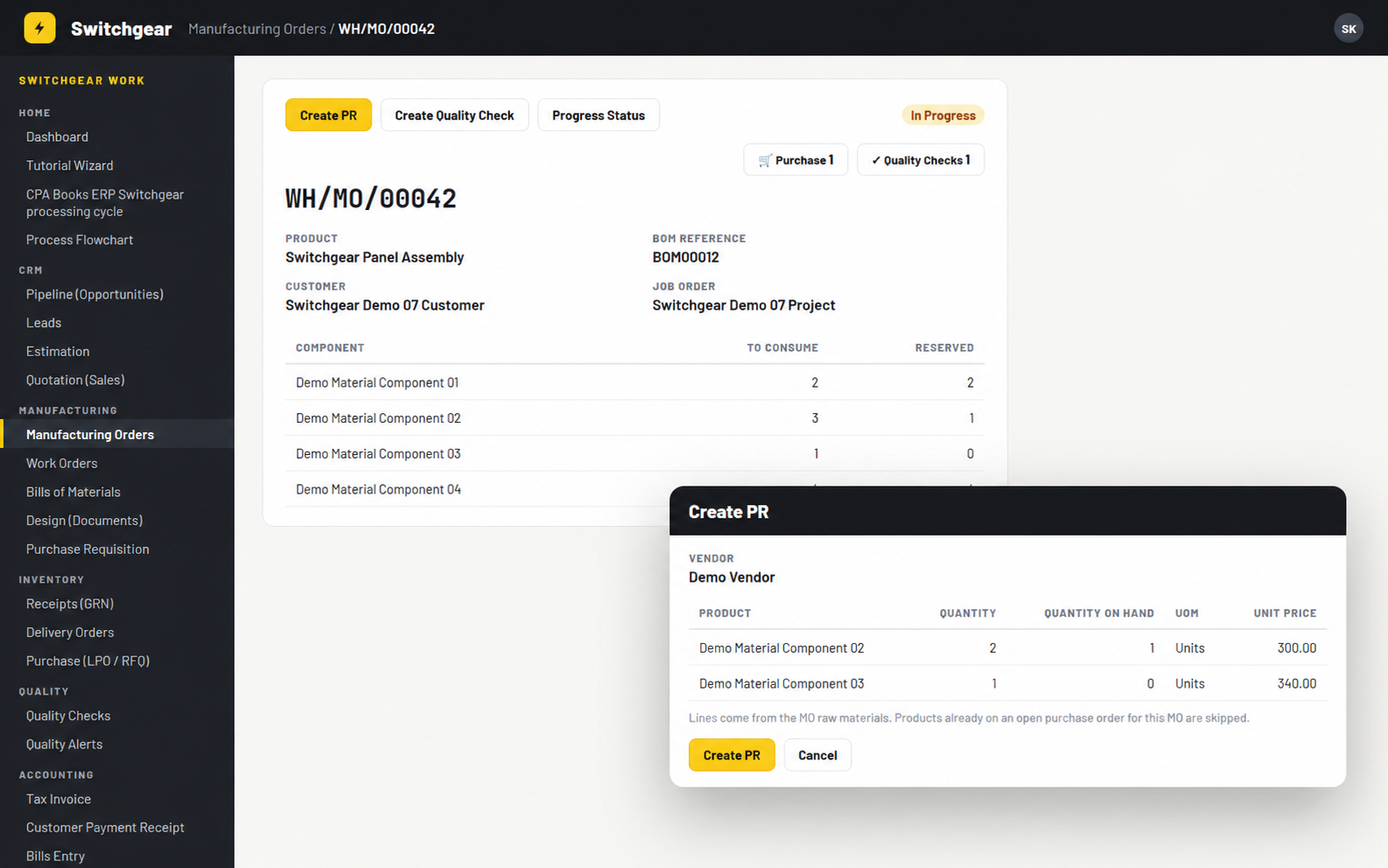
Buttons carry the job forward
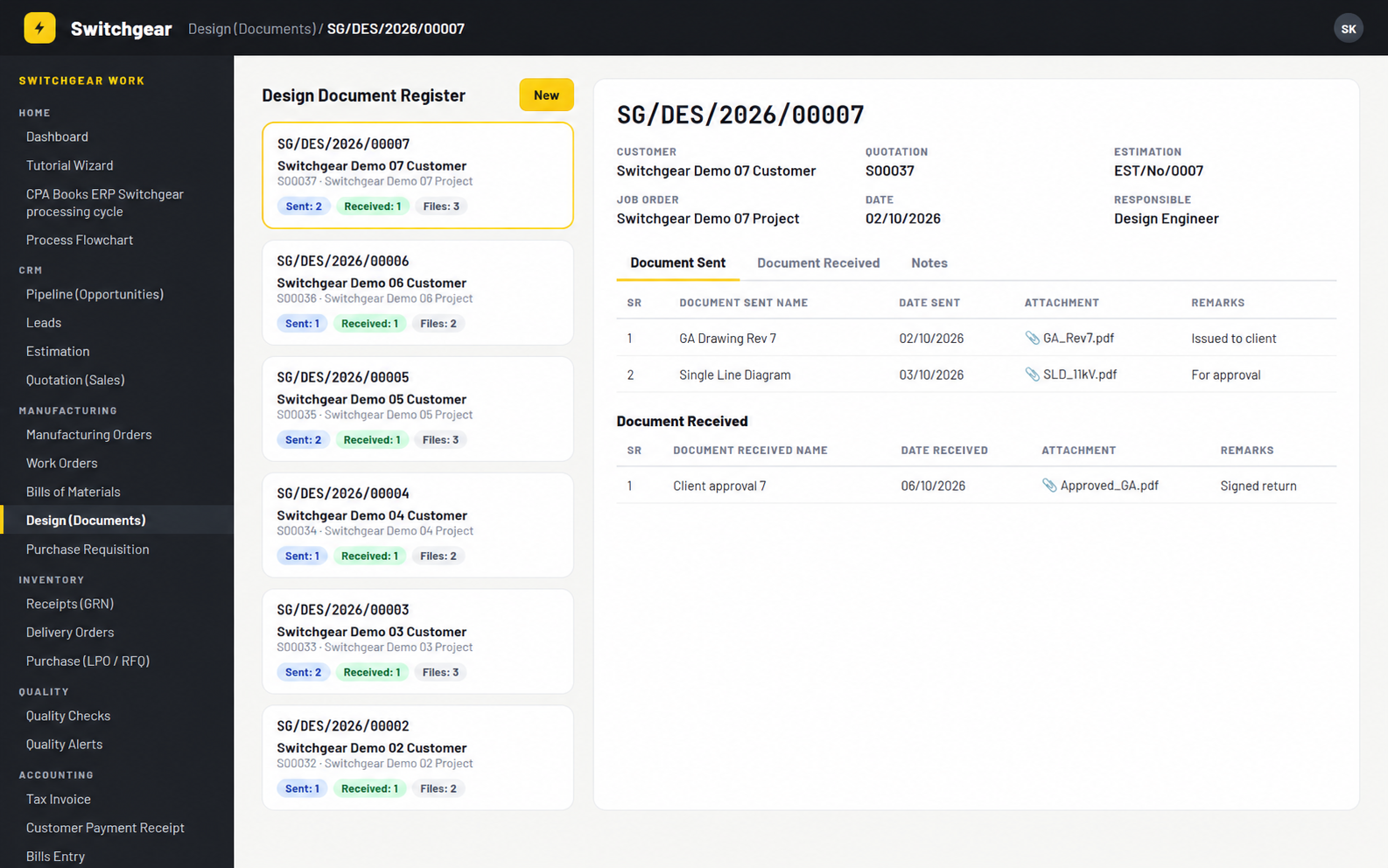
Drawings out, approvals back, all on the job
Each register gets a number like SG/DES/2026/00007 and links the customer, quotation, estimate and job order.
| Document Sent | SR, name, date, file, remarks |
| Document Received | SR, name, date, file, remarks |
| Kanban cards | Sent, Received and Files counts |
| Chatter | Messages and scheduled activities |
Sales orders also get Document and Document Received tabs.
Pass the check, ship the panel
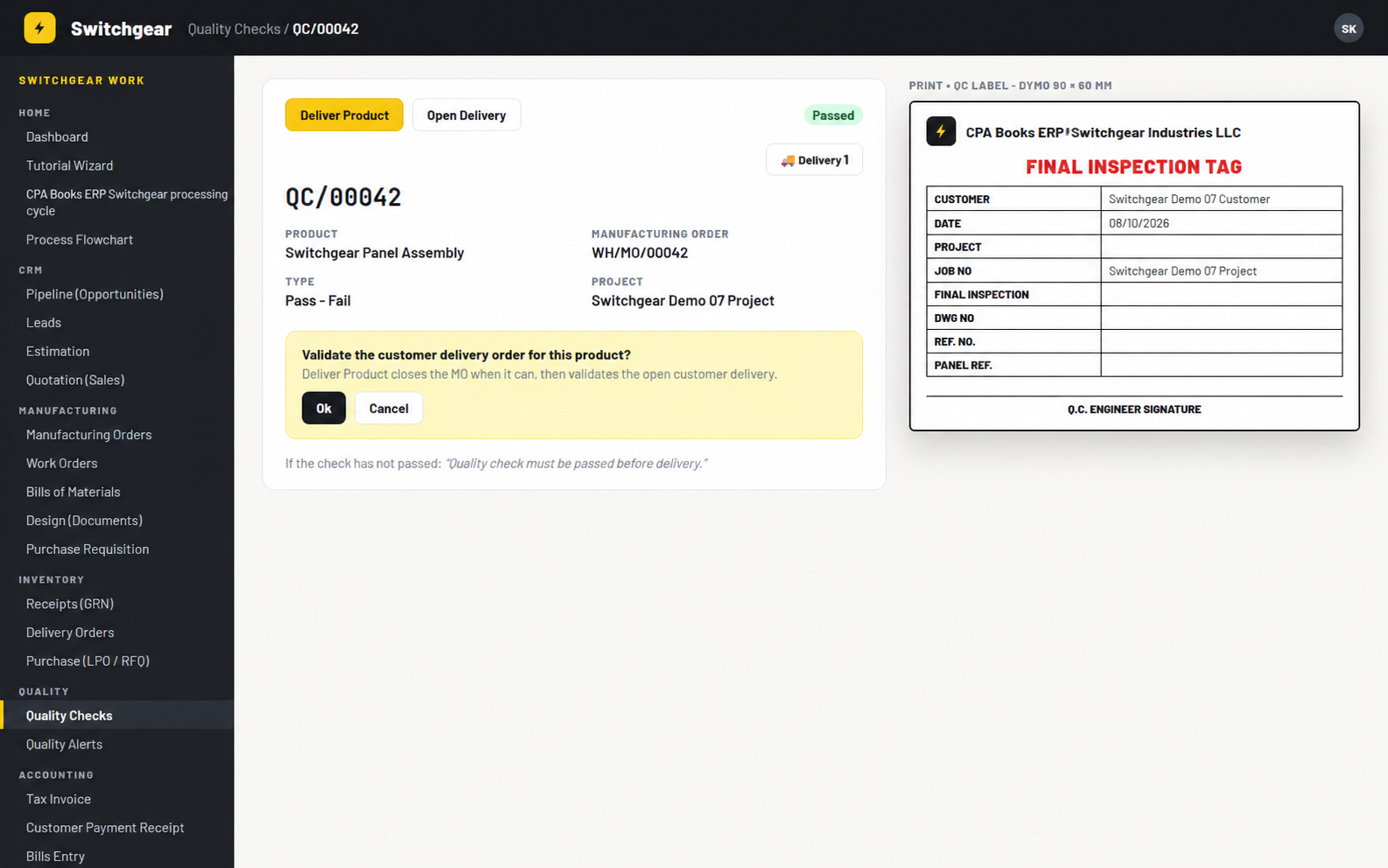
A passed quality check shows Deliver Product and Open Delivery. The app finds the right customer delivery from the check, the sales order, the MO origin or the procurement group. Until the check passes, delivery is blocked.
FINAL INSPECTION · DWG NO · REF. NO. · PANEL REF.
Q.C. ENGINEER SIGNATURE
The whole factory floor, in counts you can click
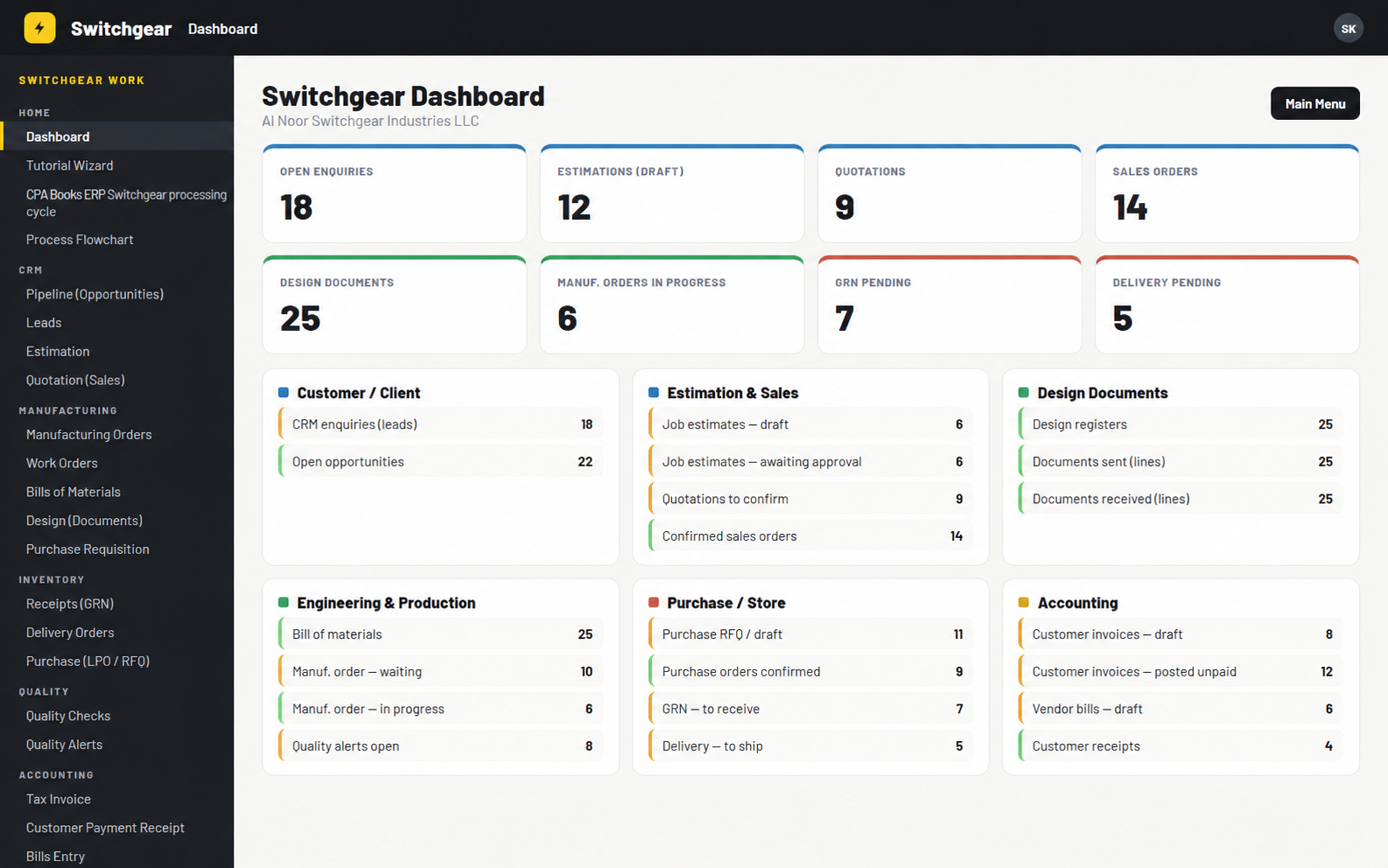
| Open Enquiries | Active CRM leads |
| Estimations · Quotations · Sales Orders | Open estimates, quotations to confirm, confirmed orders |
| Design Documents · MOs In Progress | Registers, and manufacturing orders confirmed or in progress |
| GRN Pending · Delivery Pending | Receipts and deliveries not yet done |
Below the tiles, six workflow panels (Customer, Estimation & Sales, Design, Engineering & Production, Purchase / Store, Accounting) list what is waiting and what is moving.
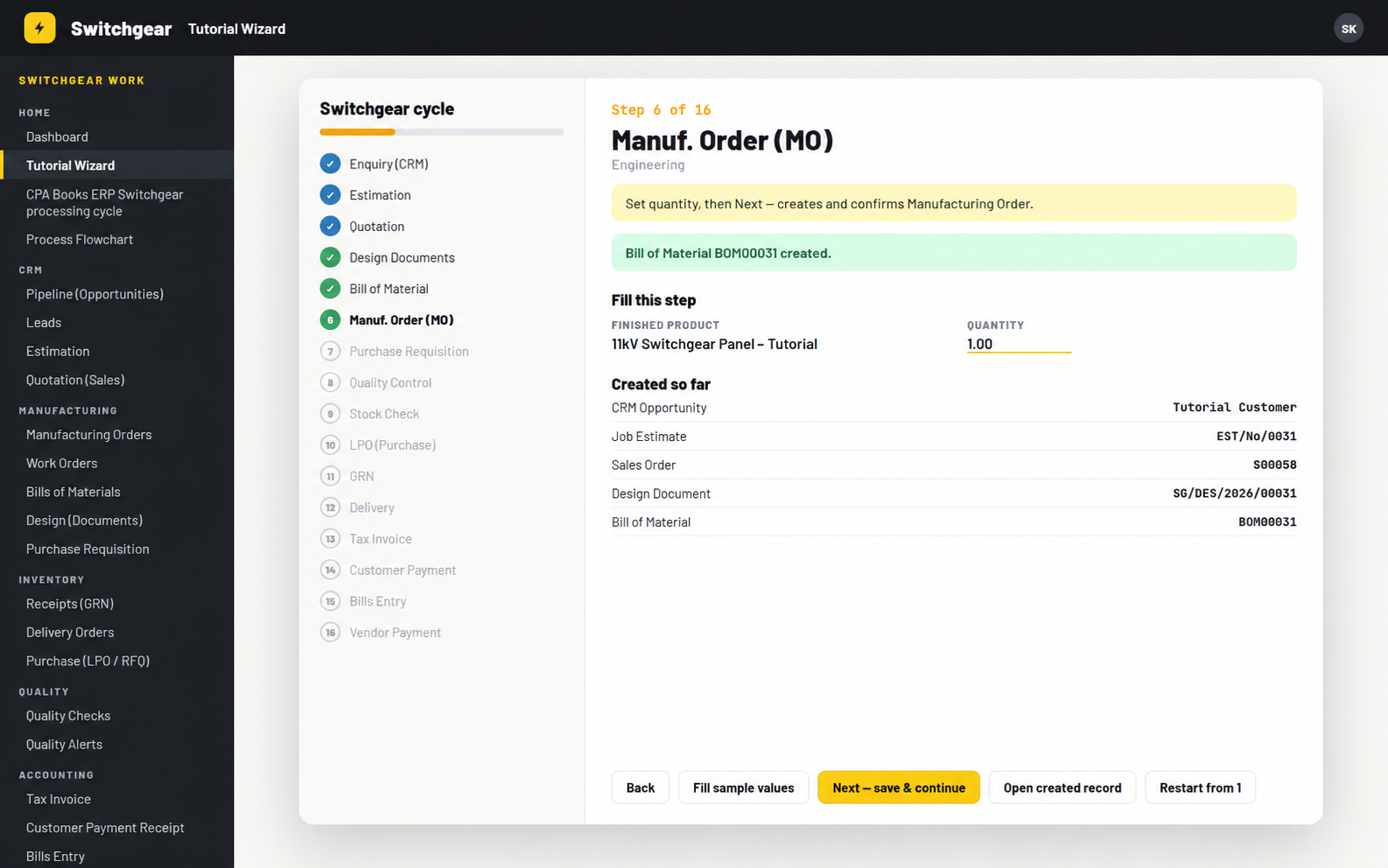
Learn it in one sitting
Each step shows a hint and a short form. Press Fill sample values, then Next: the wizard creates the opportunity, estimate, sales order, design document, BOM, MO, PR, quality check, PO, GRN, delivery, invoice and payments, and lists everything created so far.
Administrators open Switchgear Management System demo data, choose the Switchgear Management System or Furniture profile and how many stacks to load (1 to 100, default 25).
| Customers, leads and opportunities |
| Estimates in draft, awaiting approval and approved |
| Design registers, BOMs, MOs at every stage |
| Purchase requisitions, quality alerts, timesheets |
| Invoices, vendor bills and payments |
| 13 follow-up activities per stack |
Clean Demo Data removes the demo customers, stacks and DEMO-SG / DEMO-FN products.
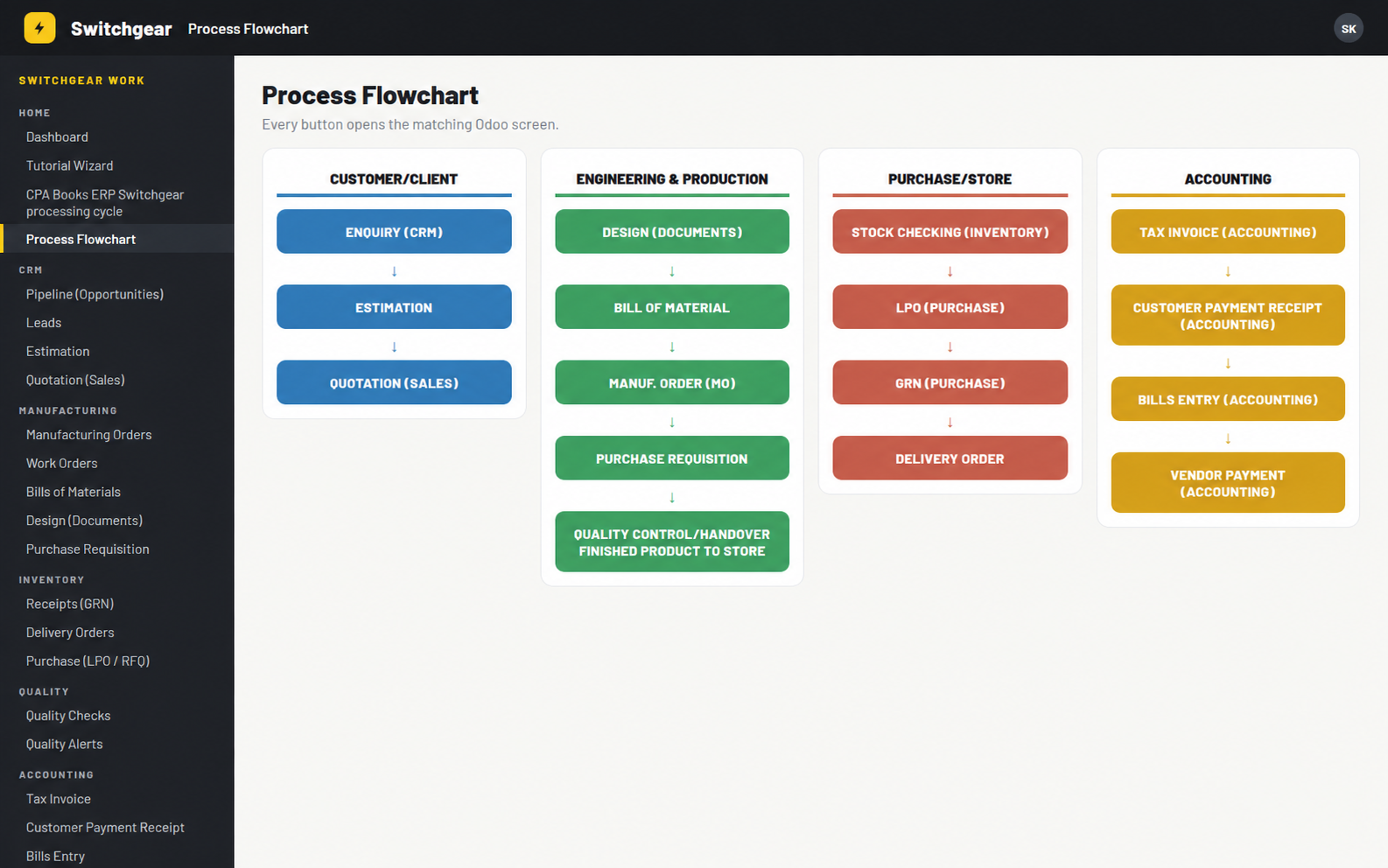
One app, one sidebar, every screen
The Switchgear Management System app opens with a left sidebar called Switchgear Management System Work. The Process Flowchart gives the same flow as four columns of buttons.
Projects get smart buttons for Estimations, BoMs, Manufacturing Orders and Quality Checks, plus a Tasks by Customer view.
Requirements
| Odoo | 14.0 Community or Enterprise |
| Odoo apps | CRM, Sales, Manufacturing, Inventory, Purchase, Invoicing, Project, Employees, Timesheets |
| Third-party apps | None. Only standard Odoo modules are needed. |
| Built in | Job estimates, quality checks and alerts, purchase requisitions, activity lists |
| Works with | Enterprise Quality and Purchase Agreements can stay installed; Switchgear Management System uses its own records |
Good to know
Installing switches the web UI to Switchgear Management System mode: the Switchgear Management System sidebar replaces the top submenus on its screens.
The CRM pipeline opens in list view, and Mark Won is hidden on opportunities so jobs move through the cycle.
Configuration and the demo data loader are for administrators only. All internal users get the Switchgear Management System app.
Questions
Upgradeable to any Odoo version
Switchgear Management System ships for Odoo 14 today. We upgrade it to whichever Odoo version your panel shop runs. WhatsApp or email us your version.
Power up your panel shop
Setup help, a demo or a custom report? Email or WhatsApp us on +971 56 256 8128.
# -*- coding: utf-8 -*-
{
    'name': 'Switchgear Management System',
    'summary': 'Switchgear Management System and panel manufacturing in one 16-step cycle: enquiry, estimate, '
               'quotation, design documents, BOM, MO, QC, purchase, GRN, delivery, invoice and payment',
    'description': """
Switchgear Management System
==================
Run switchgear and electrical panel jobs from CRM enquiry to vendor payment:
processing cycle screen, progress status checklist, design document register,
estimate to BOM to MO, QC final inspection tag, dashboard, tutorial wizard and demo data.
""",
    'category': 'Manufacturing',
    'version': '14.0.1.0.0',
    'author': 'CPA Books ERP',
    'website': 'https://cpabookserp.com',
    'live_test_url': 'https://cpabookserp.com/contactus',
    'support': 'info.cpabooks@gmail.com',
    'depends': [
        'web', 'mail', 'utm',
        'crm', 'sale_management', 'sale_stock', 'sale_crm', 'sale_project',
        'mrp', 'stock_account', 'purchase_stock', 'account',
        'project', 'hr', 'hr_timesheet',
    ],
    'data': [
        'security/menu_groups.xml',
        'security/ir.model.access.csv',
        'security/switchgear_security.xml',
        'wizard/create_purchase_order.xml',
        'views/switchgear_demo_wizard_views.xml',
        'data/ir_sequence_data.xml',
        'data/flowchart_kanban_data.xml',
        'data/switchgear_quality_data.xml',
        'views/crm_lead_views.xml',
        'views/mrp_production_views.xml',
        'views/mrp_bom_views.xml',
        'views/job_estimate_views.xml',
        'views/sale_order_views.xml',
        'views/switchgear_design_document_views.xml',
        'views/stock_picking_views.xml',
        'views/purchase_order_views.xml',
        'views/quality_views.xml',
        'views/purchase_requisition_views.xml',
        'views/account_move_views.xml',
        'views/project_views.xml',
        'views/flowchart_views.xml',
        # Tutorial menuitem parents menu_flowchart_kanban_root (created above).
        'views/switchgear_tutorial_wizard_views.xml',
        'views/menu_groups.xml',
        'views/switchgear_menu_icon.xml',
        'views/switchgear_project_menus.xml',
        'views/switchgear_configuration_action.xml',
        'views/switchgear_configuration_menu.xml',
        'views/switchgear_activity_menus.xml',
        'views/switchgear_odooapp_demo_menu.xml',
        'views/switchgear_hide_top_menus.xml',
        'views/cpabooks_progress_status_views.xml',
        'views/switchgear_assets.xml',
        'report/mrp_report_bom_structure.xml',
        'report/mrp_production_templates.xml',
        'report/qc_label_templates.xml',
        'report/report_menu.xml',
    ],
    'qweb': [
        'static/src/xml/switchgear_dashboard.xml',
    ],
    'images': ['static/description/banner.png'],
    'installable': True,
    'application': True,
    'auto_install': False,
    'post_init_hook': 'post_init_hook',
    'license': 'OPL-1',
}
Copyright (c) 2026 Saaskul (https://saaskul.com)

Odoo Proprietary License v1.0

This software and associated files (the "Software") may only be used (executed,
modified, executed after modifications) if you have purchased a valid license
from the authors, typically via Odoo Apps, or if you have received a written
agreement from the authors of the Software (see the COPYRIGHT file).

You may develop Odoo modules that use the Software as a library (typically
by depending on it, importing it and using its resources), but without copying
any source code or material from the Software. You may distribute those
modules under the license of your choice, provided that this license is
compatible with the terms of the Odoo Proprietary License (For example:
LGPL, MIT, or proprietary licenses similar to this one).

It is forbidden to publish, distribute, sublicense, or sell copies of the Software
or modified copies of the Software.

The above copyright notice and this permission notice must be included in all
copies or substantial portions of the Software.

THE SOFTWARE IS PROVIDED "AS IS", WITHOUT WARRANTY OF ANY KIND, EXPRESS OR
IMPLIED, INCLUDING BUT NOT LIMITED TO THE WARRANTIES OF MERCHANTABILITY,
FITNESS FOR A PARTICULAR PURPOSE AND NONINFRINGEMENT. IN NO EVENT SHALL THE
AUTHORS OR COPYRIGHT HOLDERS BE LIABLE FOR ANY CLAIM, DAMAGES OR OTHER
LIABILITY, WHETHER IN AN ACTION OF CONTRACT, TORT OR OTHERWISE, ARISING FROM,
OUT OF OR IN CONNECTION WITH THE SOFTWARE OR THE USE OR OTHER DEALINGS IN THE
SOFTWARE.